
PH010 Beginner Tutorial: Register, Login, Deposit and Withdraw
This guide is made for new PH010 users. It explains how to create an account with a username, log in with your username and password, complete personal information, deposit funds, get a promo code from the official Telegram group, enter games, link a withdrawal method and submit a withdrawal request.
For legal age users only. Use this platform for entertainment and play responsibly.
Guide Steps
- Username and password preparation
- Username registration
- Username login
- Personal information setup
- Deposit guide
- Telegram group bonus code claim
- Game entry guide
- Withdrawal method and withdraw
1. Prepare a Username and Password
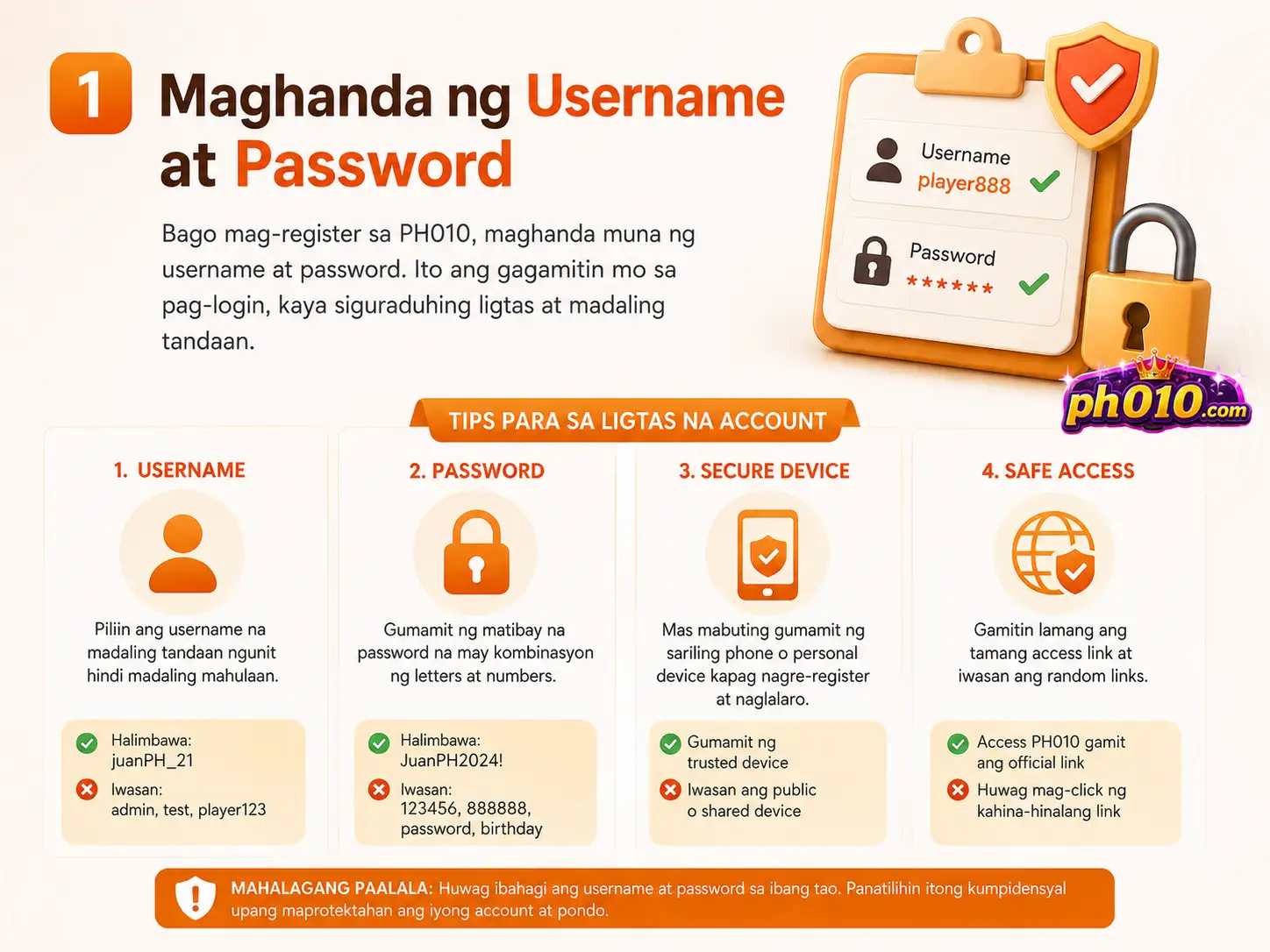
Before registering on PH010, prepare a username and password first. The username will be used for login, so choose a name that is easy for you to remember but not easy for other people to guess. Avoid very simple usernames such as admin, test, player123 or names that can be easily copied.
You should also create a safer password. It is better to use a combination of letters and numbers. Do not use your birthday, simple numbers, 123456, 888888 or the same password you use on other accounts.
Username
Choose a username that is easy to remember but not easy to guess.
Password
Use a strong password and never share it with other people.
Secure Device
It is better to register using your own phone or personal device.
Safe Access
Use only the correct access link and avoid random links from unknown sources.
2. How to Register with a Username
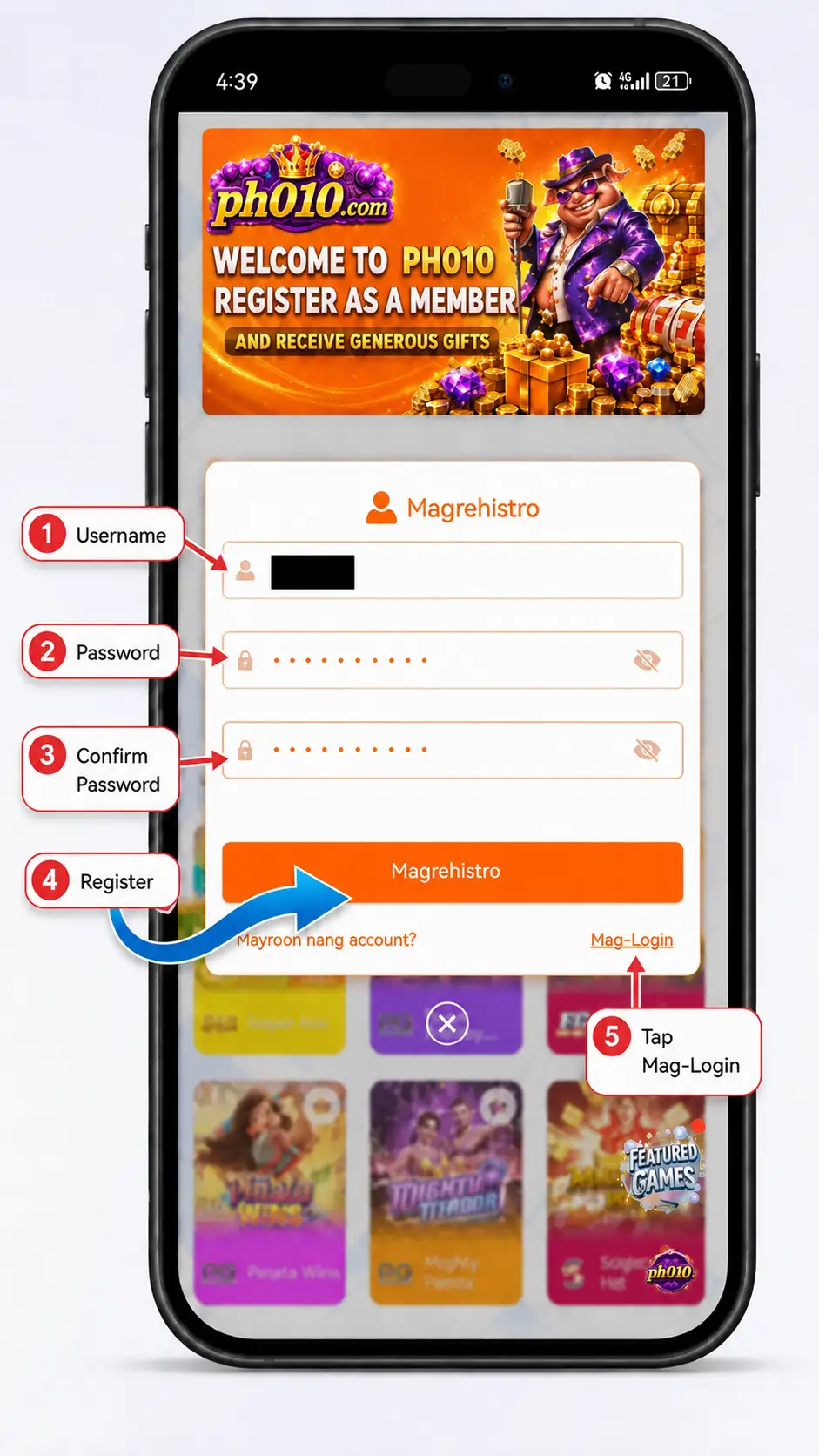
In the registration window, enter the username you want to use for your PH010 account. Then create a login password and type the same password again in the confirm password field. When the username is correct and both passwords match, tap the “Magrehistro” button to complete registration.
Open the Registration Window
Tap the register or Magrehistro entry from the PH010 page.
Enter Your Username
Type the username you want to use for each login.
Enter Your Password
Create a password that is not easy to guess.
Confirm Password
Type the same password again to confirm that it is correct.
Tap Magrehistro
When all details are correct, tap the Magrehistro button.
Already Have an Account?
If you already have an account, tap Mag-Login to return to the login window.
3. How to Login with a Username
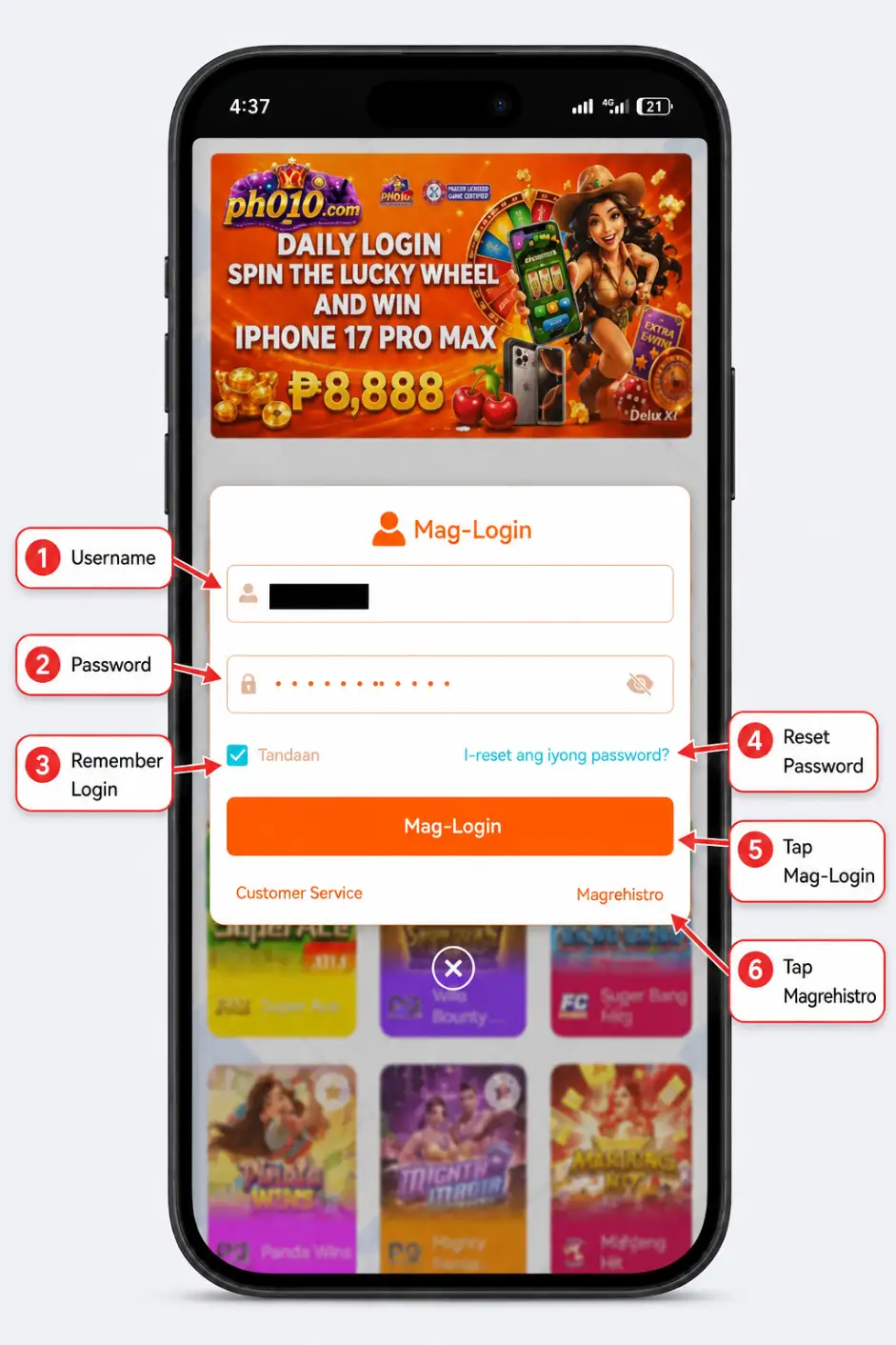
After creating an account, use your username and password to log in. Make sure you are opening the correct page before entering your account details. If the password is wrong or login fails, do not give your account information to another person.
Open Mag-Login
Tap the Mag-Login entry to open the login window.
Enter Your Username
Type the registered username you created during registration.
Enter Your Password
Enter the correct password and check for typing mistakes.
Remember Login
This can be used on your own device, but avoid using it on shared phones or public devices.
Reset Password
If you forgot your password, use the reset password option if available.
Tap Mag-Login
When the username and password are correct, tap the Mag-Login button.
4. How to Bind Personal Information
After logging in, complete your personal information first. This is important before withdrawal, because the name and account details should match the withdrawal information to avoid failed or delayed transactions.
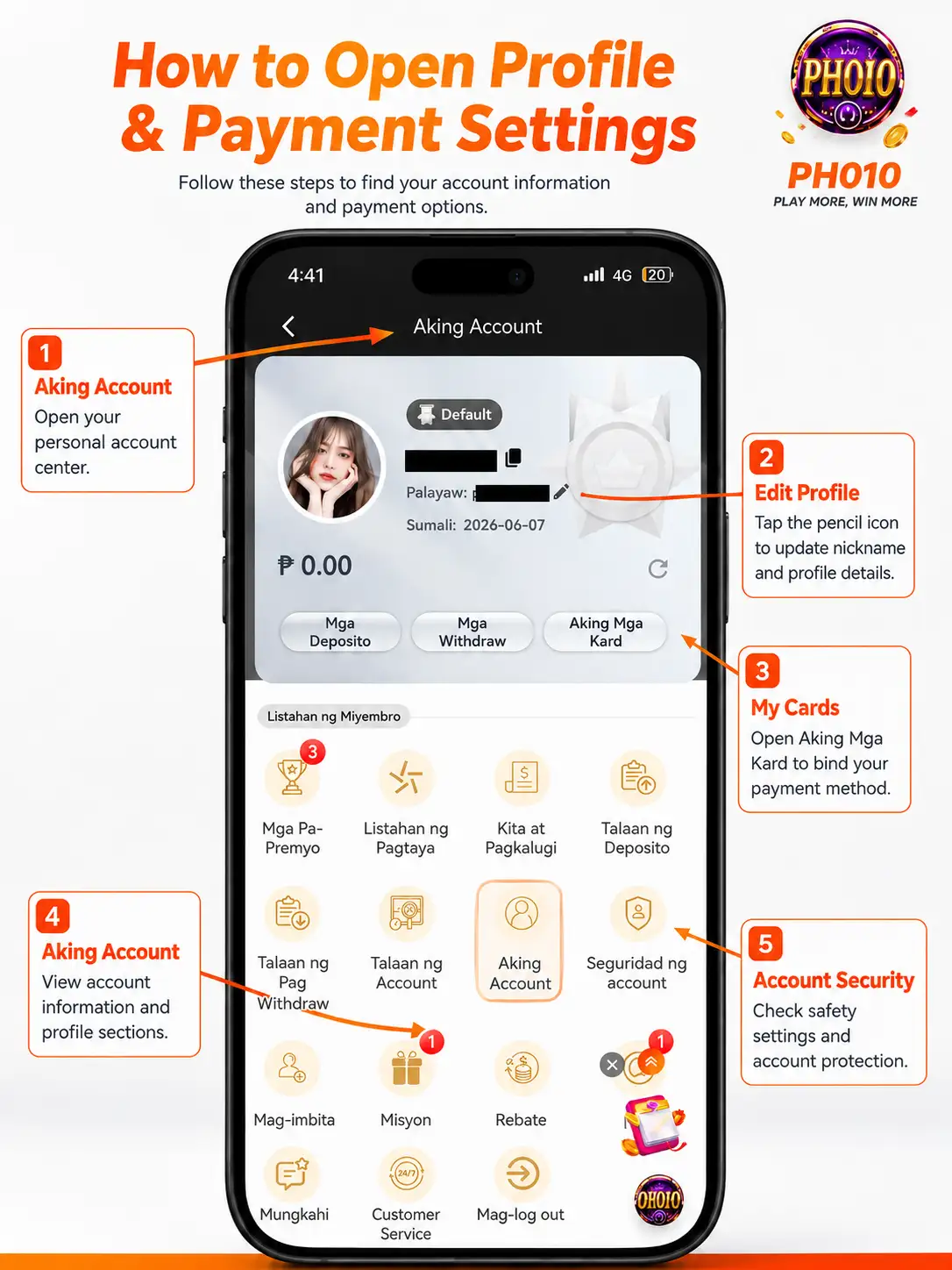
From the Aking Account page, tap the edit icon or Aking Account section to open the personal information form.
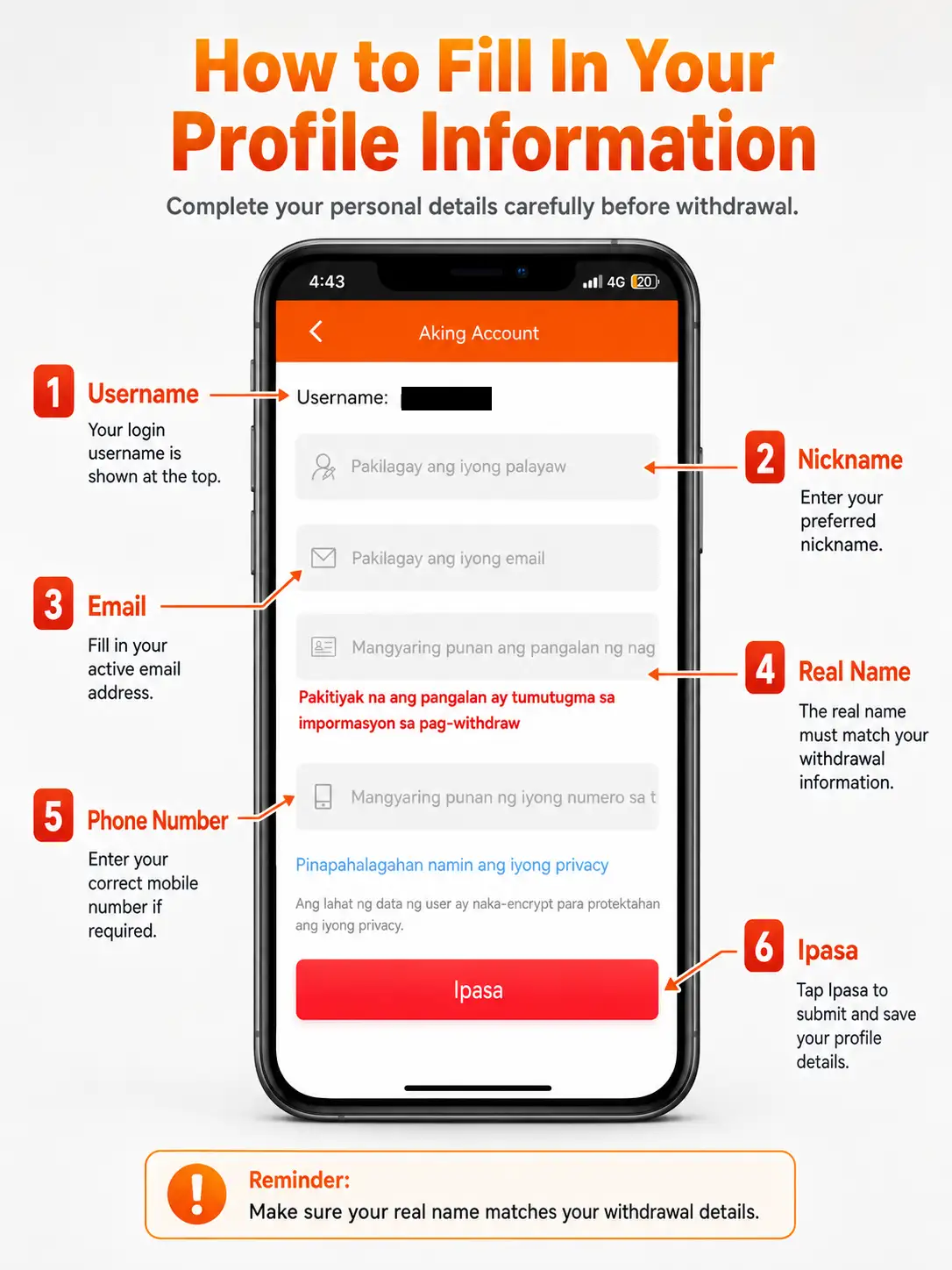
Open Aking Account
Go to the member center and find the Aking Account section.
Add a Nickname
Enter your nickname if the page asks for it.
Enter Your Email
Use an active email for account notices or support verification.
Enter Your Real Name
Make sure the name matches your withdrawal information.
Enter Phone Number If Required
If the page asks for it, enter the correct contact number.
Tap Ipasa
When everything is correct, tap Ipasa to save the information.
Important Reminder: The real name in your profile should match the withdrawal account. If the name does not match, the withdrawal may be delayed or rejected.
5. How to Deposit on PH010
To deposit, open Aking Account first and tap Mga Deposito. Then choose an available payment method such as GCash, GCashQR or Maya. Always use the latest account details shown on the deposit page, because the receiving account may change for each deposit.
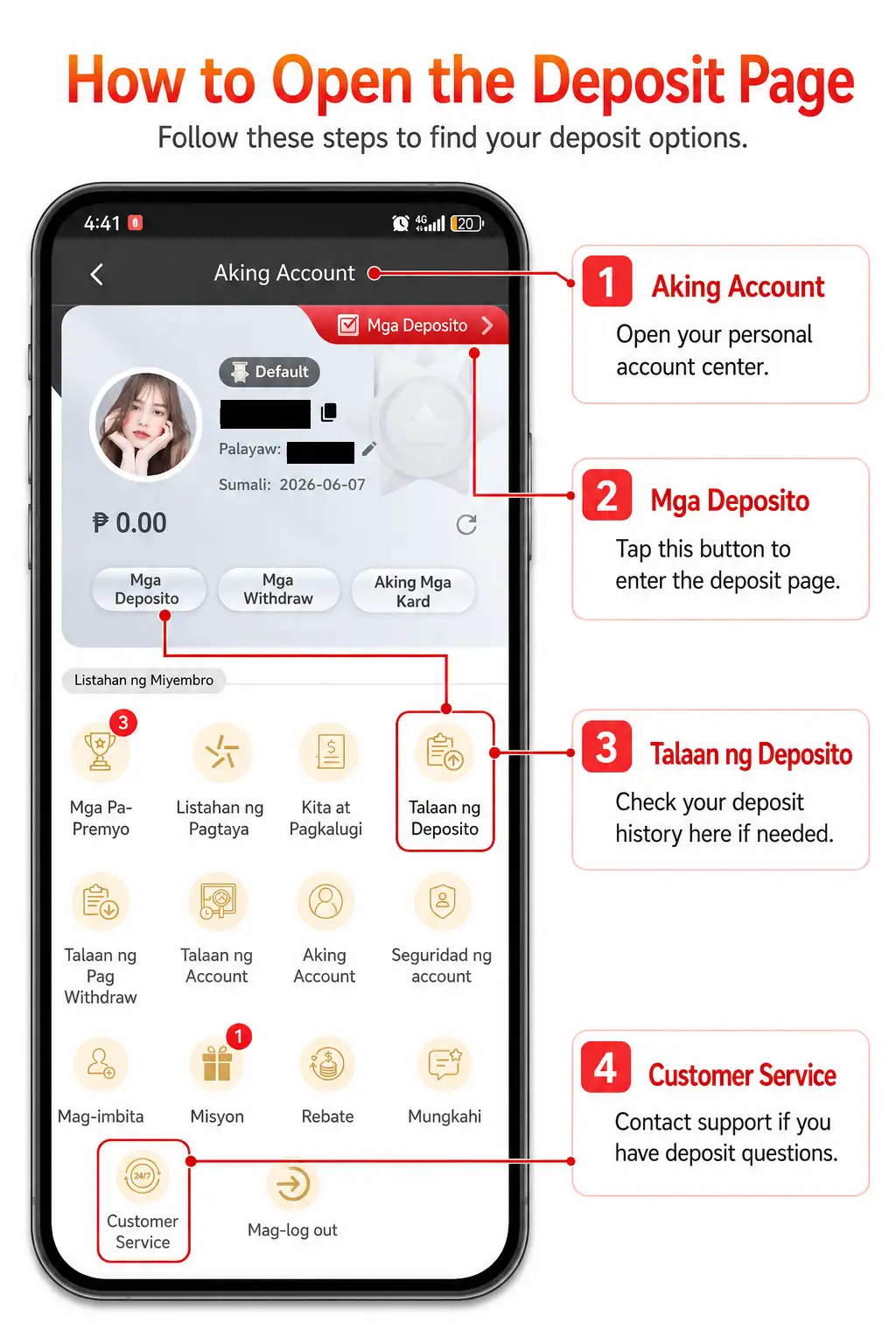
In the first part, users can see where to open the deposit page from the account center. Tap the Mga Deposito button to enter the deposit system.
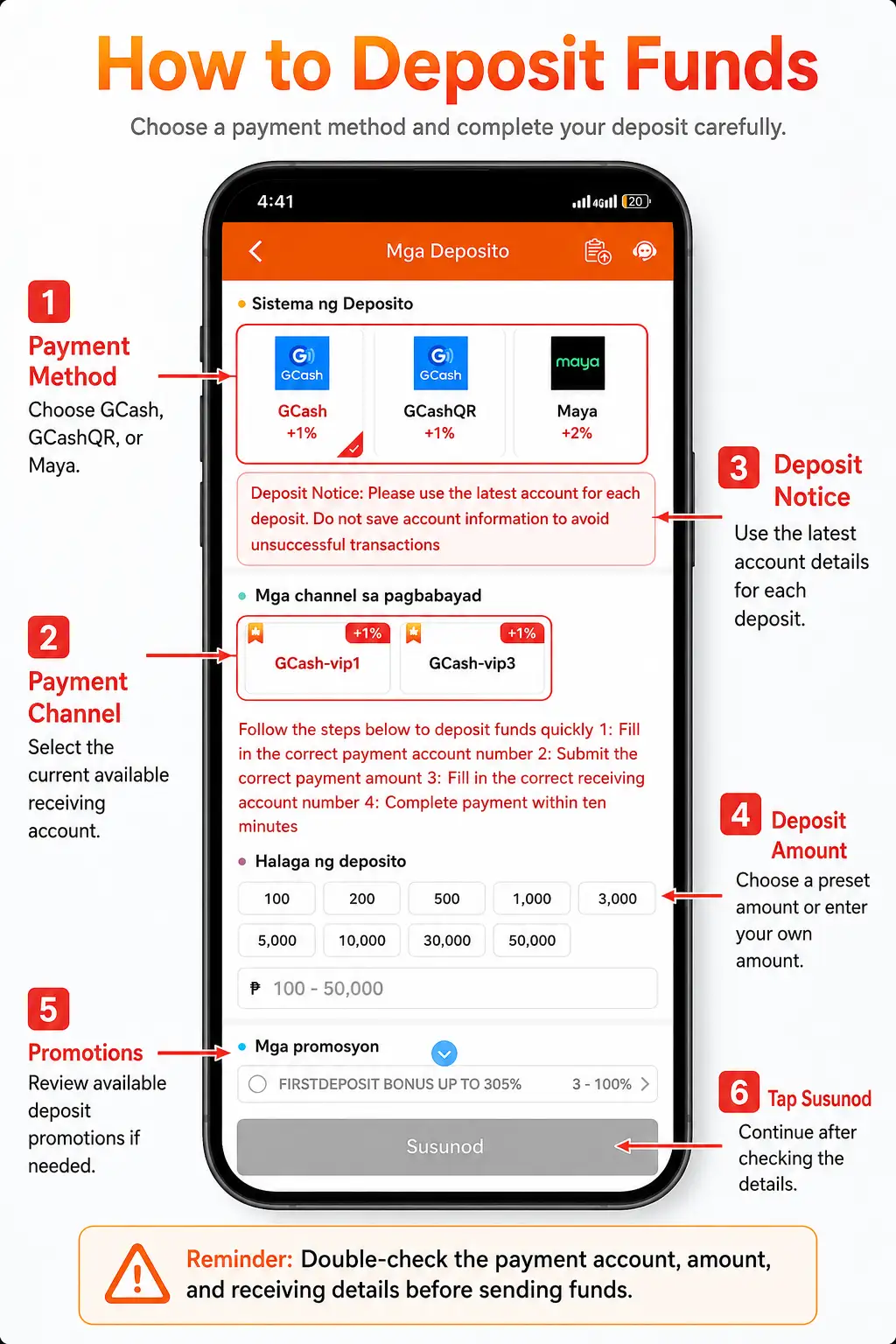
On the deposit page, choose the payment method, payment channel and deposit amount. Read the deposit notice before continuing. If there is a promotion below, read the rules before selecting it.
Open Aking Account
Go to the account center after login. You can see the balance, deposit button, withdraw button and account options here.
Tap Mga Deposito
Tap the Mga Deposito button to open the deposit page.
Choose Payment Method
Choose GCash, GCashQR, Maya or another available payment method shown on the page.
Choose Payment Channel
Select the currently available receiving channel, such as GCash-vip1 or GCash-vip3.
Enter Deposit Amount
Choose a preset amount or enter your own amount if available. Make sure it is within the allowed deposit range.
Check the Promotion
If there is a deposit promotion, read the requirement, bonus percentage and rules first.
Tap Susunod
When the payment method, channel, amount and promotion selection are correct, tap Susunod.
Deposit Reminder: Do not save the receiving account for future deposits. Always use the latest account details shown on the deposit page to avoid unsuccessful transactions. Check the amount, payment channel and receiving account before paying.
6. How to Get and Redeem a Promo Code
Some PH010 bonuses need to be collected from the official Telegram group. They are not always added to the account automatically. You need to open customer service, choose the Telegram group, enter the official group, copy the correct promo code, then return to your account and enter the code on the promo code page.
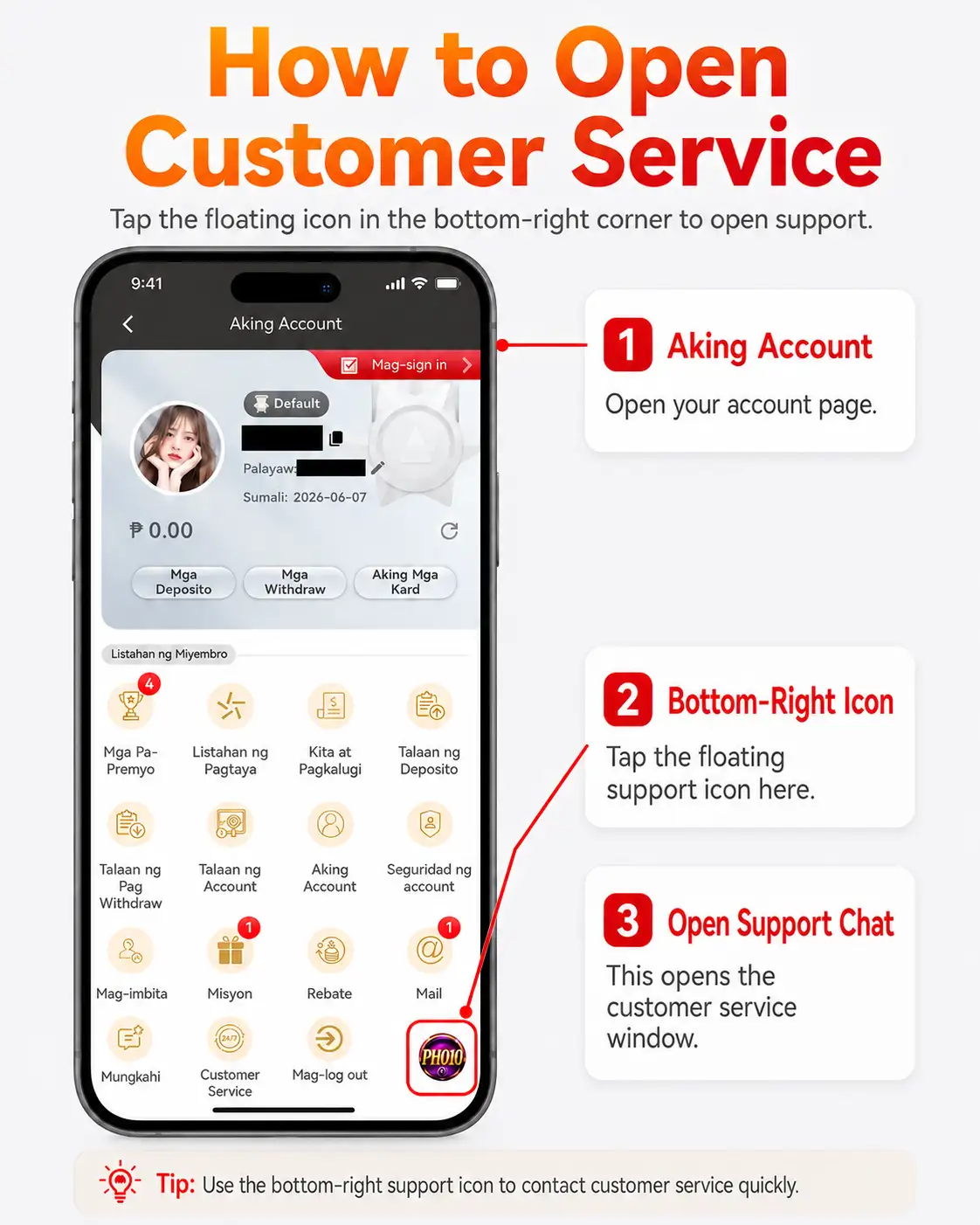
First, tap the floating customer service icon at the lower right side of the page. This is the quick way to open the support chat and find the official group link.
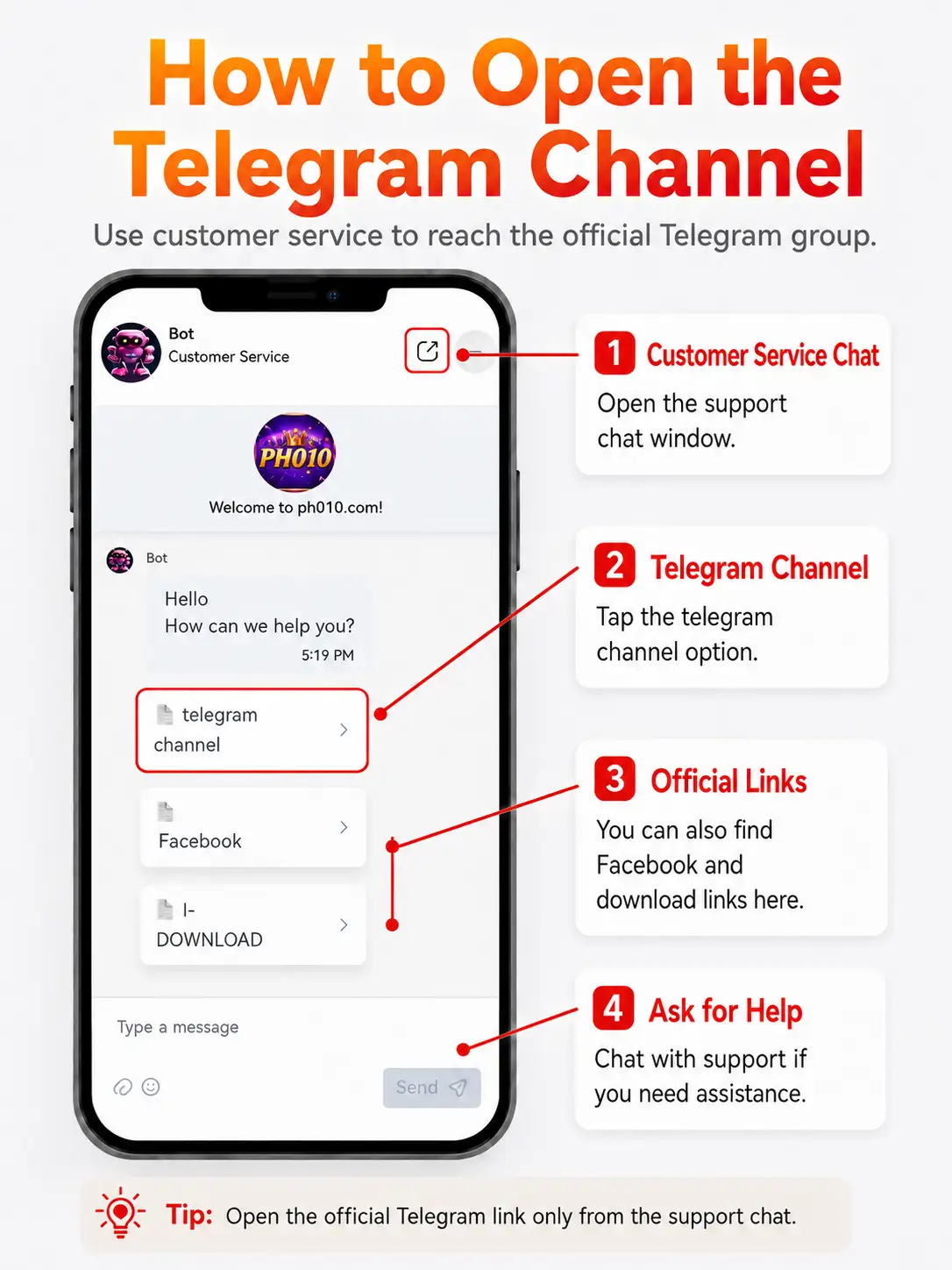
In the customer service chat, choose the Telegram group. This will take you to the official Telegram group where coupon codes, promo notices and bonus instructions are posted.
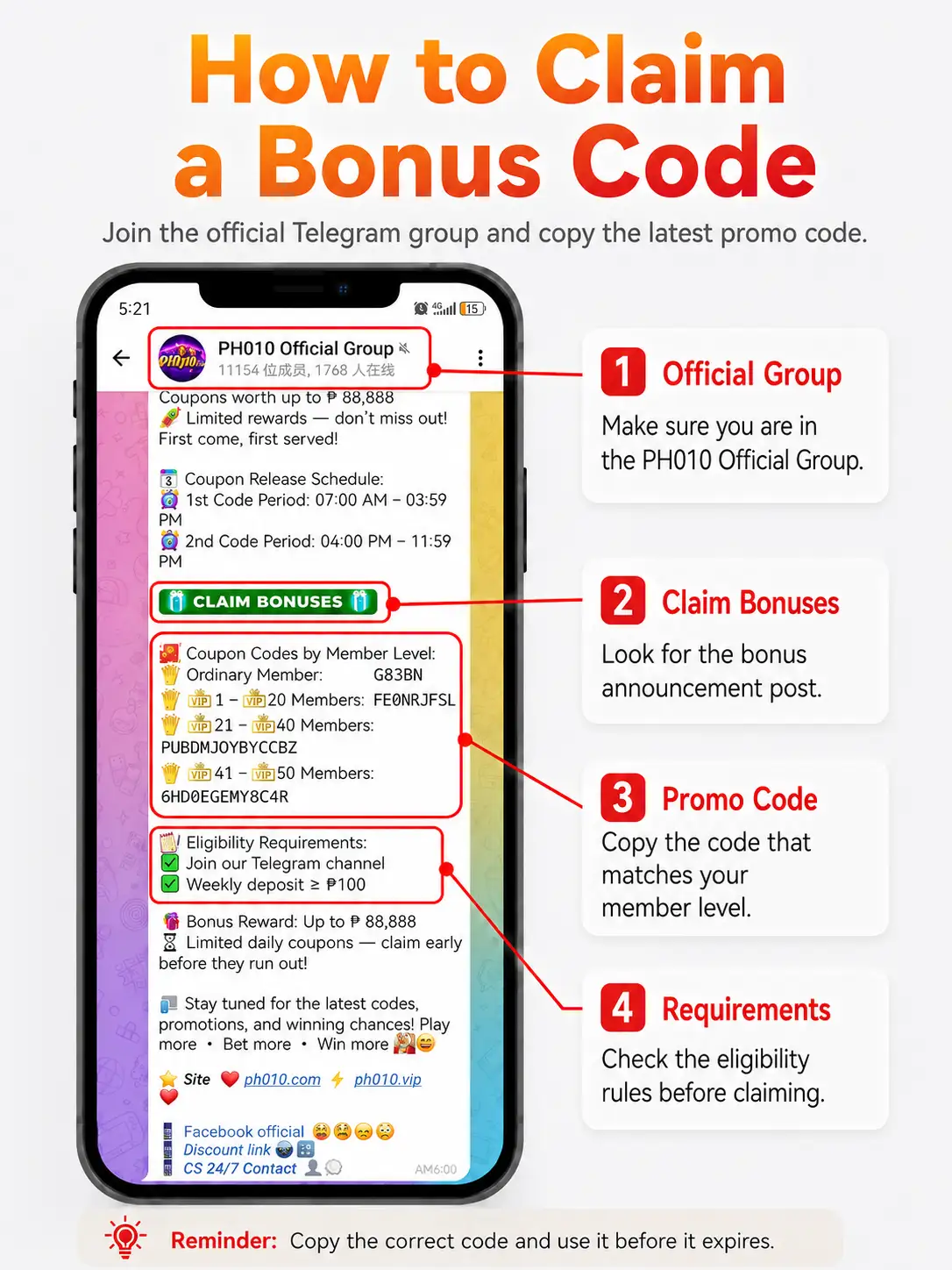
In the official Telegram group, find the latest bonus post. Read the coupon release schedule, member level, eligibility requirements and valid code first. Copy only the code that matches your account or member level.
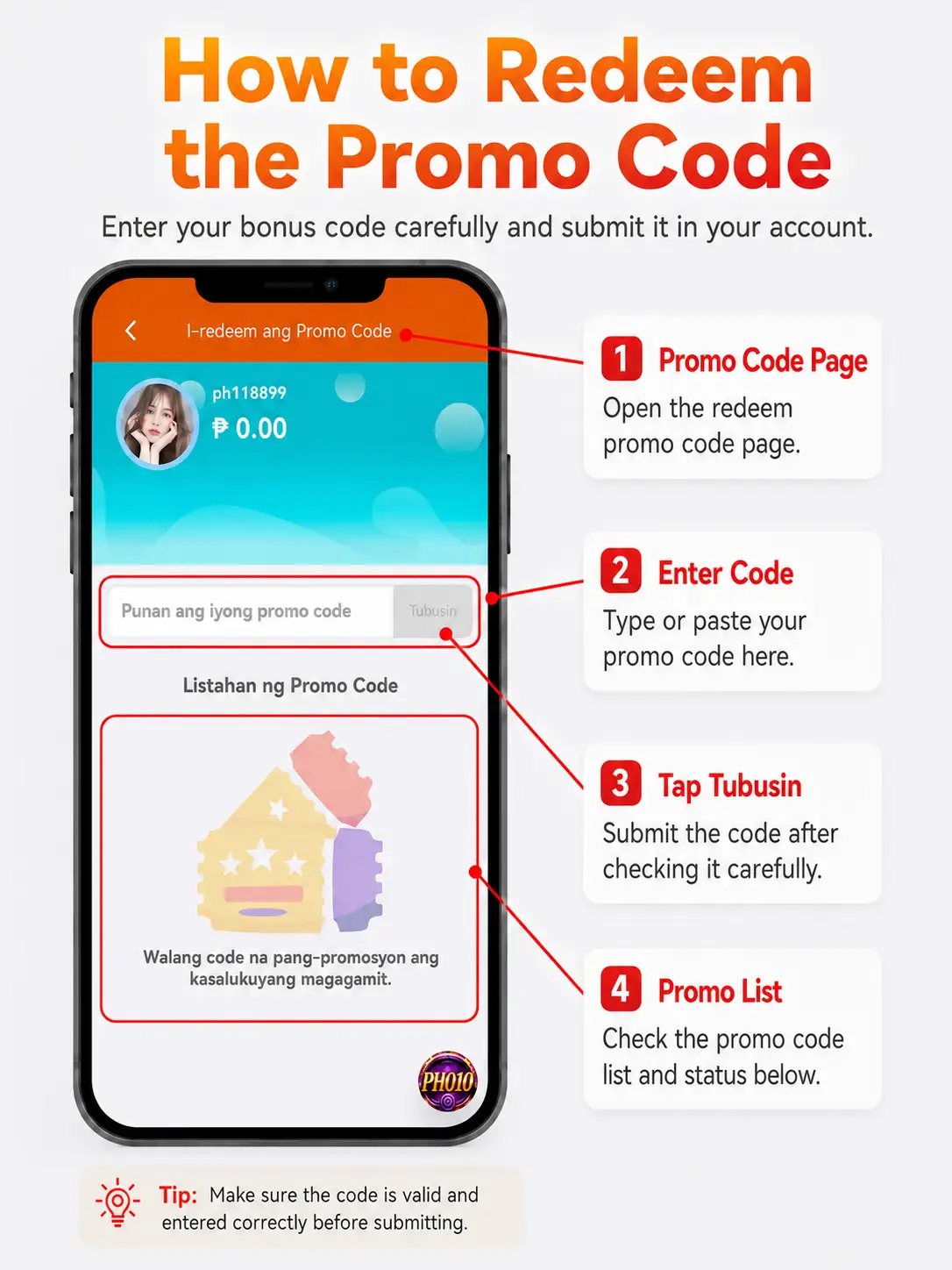
After copying the promo code, return to your PH010 account and open the I-redeem ang Promo Code page. Paste the code into the input box, check that it is correct, then tap Tubusin.
Tap the Customer Service Icon
At the lower right side of the page, tap the floating PH010 customer service icon to open the support window.
Choose Telegram Group
In the customer service chat, tap the Telegram group option to go to the official TG group.
Enter the Official Telegram Group
Make sure you open the official PH010 group. Avoid fake groups or copied links from unknown people.
Find the Latest Bonus Post
Read the coupon release schedule, bonus reward, member level and eligibility requirements.
Copy the Correct Promo Code
Copy only the promo code that matches your member level and valid claim period.
Open the Promo Code Page
Return to your PH010 account and open the I-redeem ang Promo Code page in the personal center.
Enter the Promo Code
Paste the code into the promo code input box. Check that there are no missing or extra characters.
Tap Tubusin
When the code is correct, tap Tubusin to submit the promo code.
Bonus Reminder: Do not use promo codes from unofficial sources. Read the requirements first, such as Telegram group join rule, weekly deposit requirement, member level, valid time and coupon limit before redeeming.
7. How to Enter Games
After logging in and having balance, you can enter the game lobby. Choose the game category or game card you want to play. Before starting, make sure you understand your balance and set a personal budget limit.
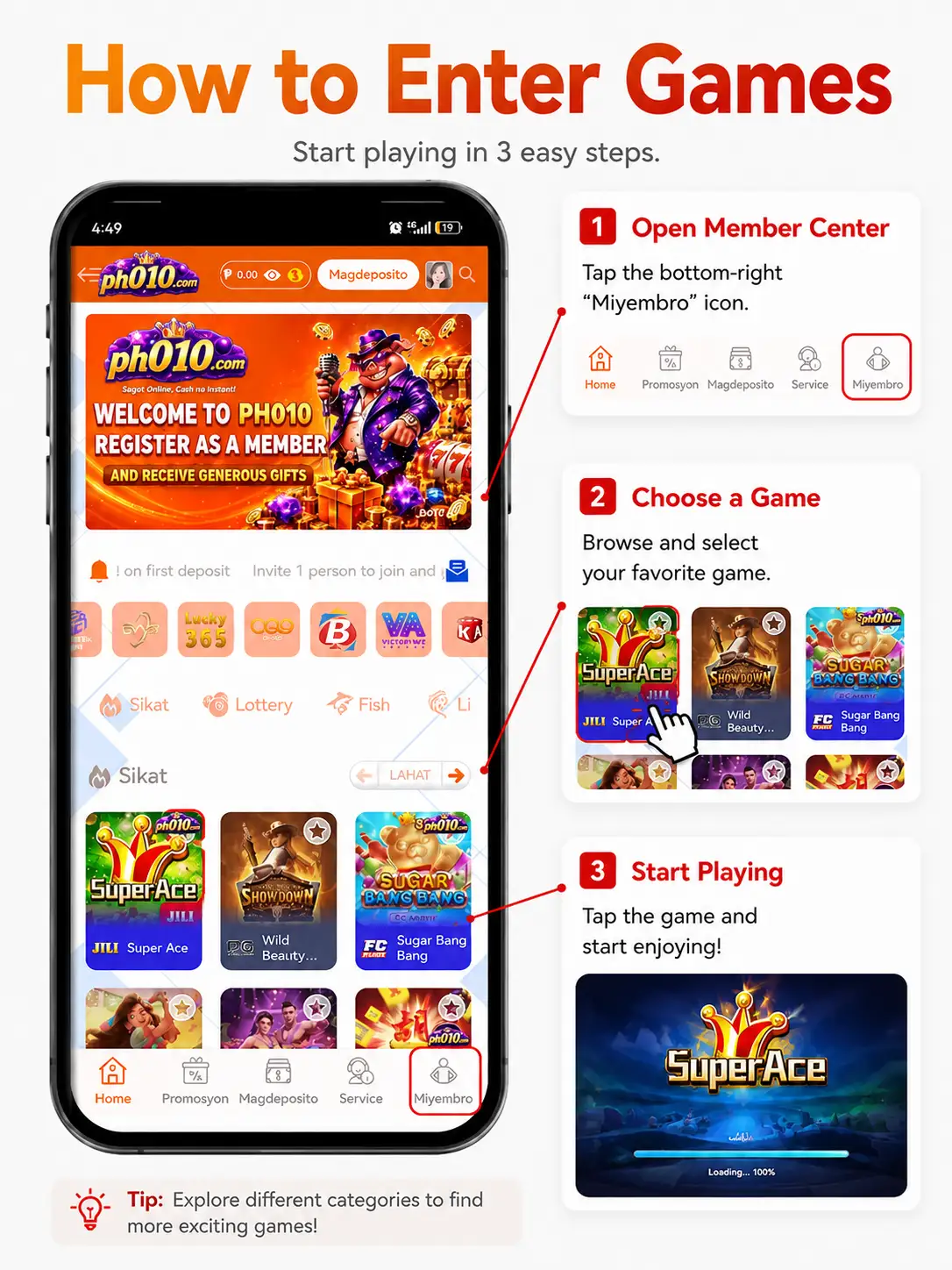
Open Home or Game Lobby
On the homepage, you can see game categories and game cards.
Choose a Game Category
Choose Sikat, Lottery, Fish, Slots or another available category.
Choose a Game
Tap a game card such as Super Ace, Wild Bounty or Sugar Bang Bang.
Start the Game
Wait for the game to load and start only if it is within your budget.
Gaming Reminder: Set a budget before playing. Do not chase losses and do not use money reserved for important needs.
8. How to Link a Withdrawal Method and Withdraw
Before withdrawing, you need to link a withdrawal method such as GCash or Maya. Make sure the real name and account number are correct and match your profile information. After linking your e-wallet, you can return to the withdraw page and submit a request.
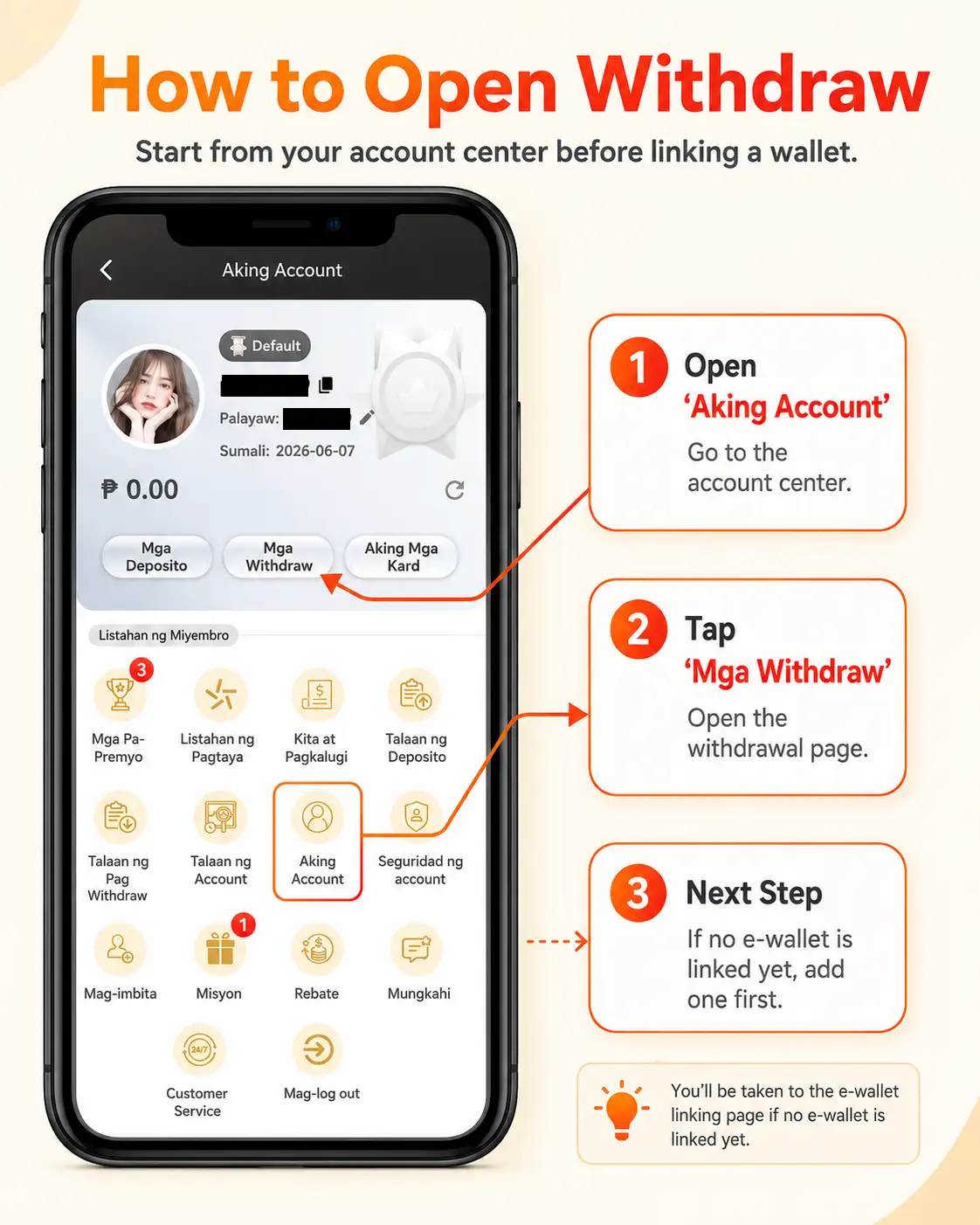
First, open the account center and tap Mga Withdraw. This is where users can check withdrawal access, linked e-wallet status and withdrawal options.
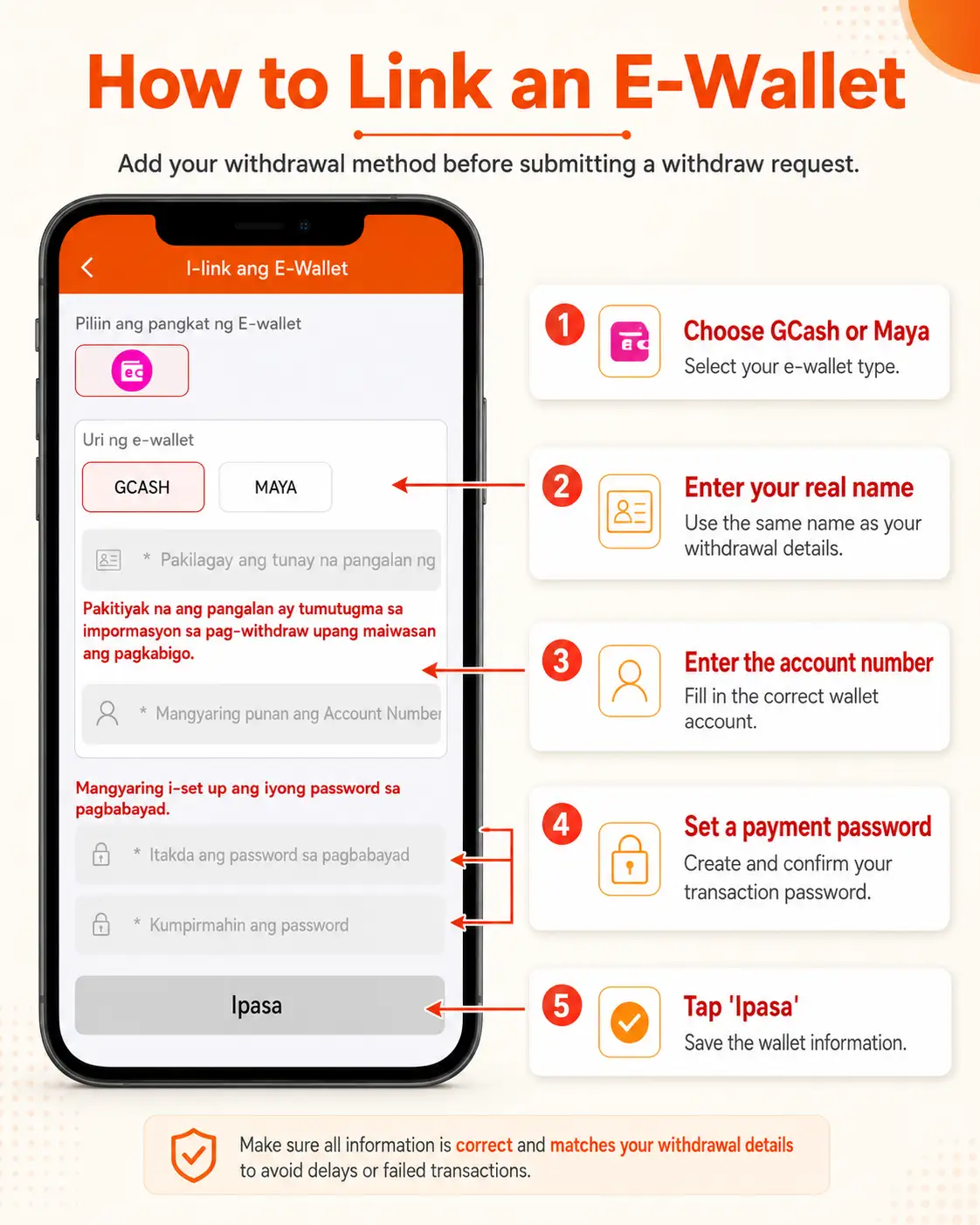
If no e-wallet is linked yet, add a withdrawal method first. Choose GCash or Maya, enter the real name, account number and payment password, then submit the information.
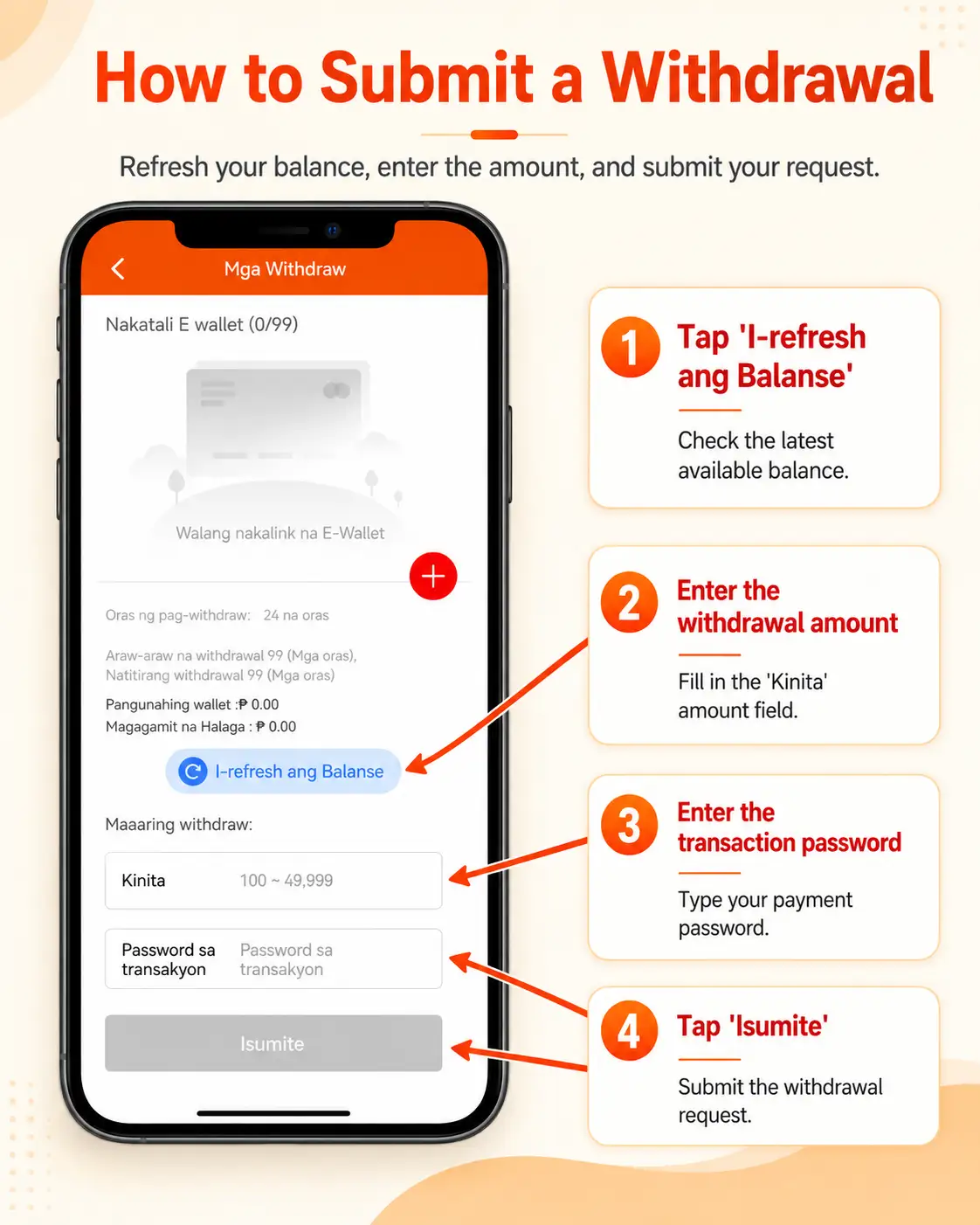
After the e-wallet is linked, return to the withdrawal page. Refresh the balance, enter the withdrawal amount, fill in the transaction password and tap Isumite to submit the withdrawal request.
Open Aking Account
Go to the account center and find the withdrawal area.
Tap Mga Withdraw
On the account page, tap Mga Withdraw to go to the withdrawal page.
Add an E-Wallet
If no e-wallet is linked yet, tap the plus button and choose GCash or Maya.
Enter Real Name and Account Number
Make sure the name matches the withdrawal information to avoid failure.
Set Payment Password
Create and confirm the payment password. Never share it with other people.
Refresh the Balance
On the withdraw page, tap refresh balance to see the latest available amount.
Enter Amount and Transaction Password
Enter the withdrawal amount and transaction password.
Tap Isumite
Check the details before tapping Isumite to submit the withdrawal request.
Withdrawal Reminder: A wrong real name, wallet number, payment password or unfinished turnover may cause failed or delayed withdrawal.
9. Frequently Asked Questions
Why can I not register?
Check whether the username, password or confirm password has an error. Use a username that is not already taken.
Why can I not log in?
Check your username, password, network connection and whether you opened the correct login page.
Why is my deposit not credited?
The amount, channel, receiving account or payment details may be wrong. Always use the latest deposit account.
How do I get the promo code?
Open customer service, enter the Telegram group and copy the promo code from the official group.
Why does the promo code not work?
The code may be expired, copied incorrectly, not matching your member level or missing the requirements.
Why is my withdrawal pending?
There may be a review for your e-wallet, account name, turnover, payment password or security status.
10. Safety Reminder
Do not share your username, password, payment password, promo code account details, wallet number or personal information with unknown people. Avoid private agents who offer deposit, withdraw, bonus claim or account repair services for a fee.
Use only the official access button and official customer service. Do not log in through links from random messages, comment sections or unknown groups. If someone sends a suspicious link, do not enter your account details.
11. Responsible Gaming
Online gaming involves financial risk and should be treated as entertainment only. Set your own budget before playing. Do not chase losses, do not borrow money to play and do not use funds reserved for food, bills, rent, family needs or other important expenses.
If you feel that you can no longer control your time or spending, stop and take a break. This tutorial is only for platform usage guidance and is not a guarantee of winning or income.
Ready to use PH010?
Follow this tutorial before registering, depositing, claiming a bonus or withdrawing.
Open PH010

